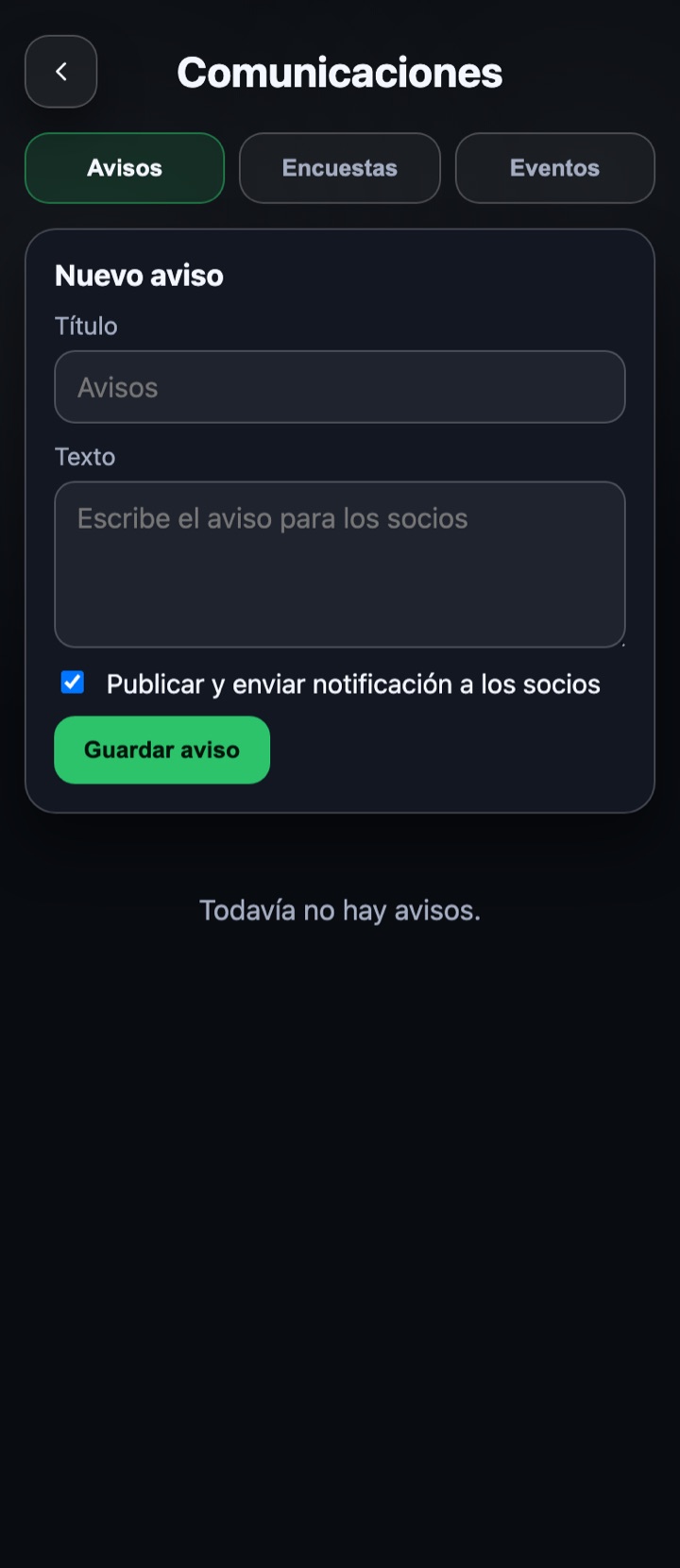
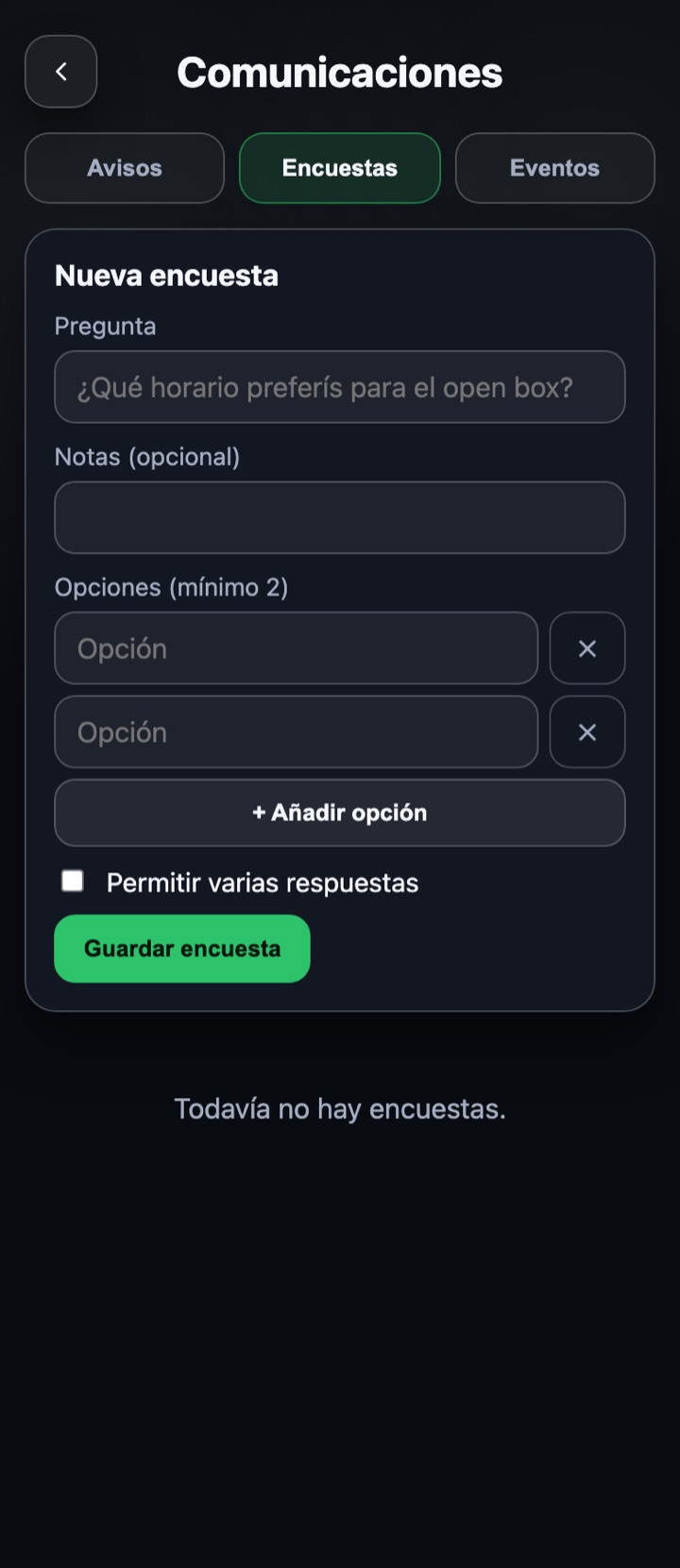
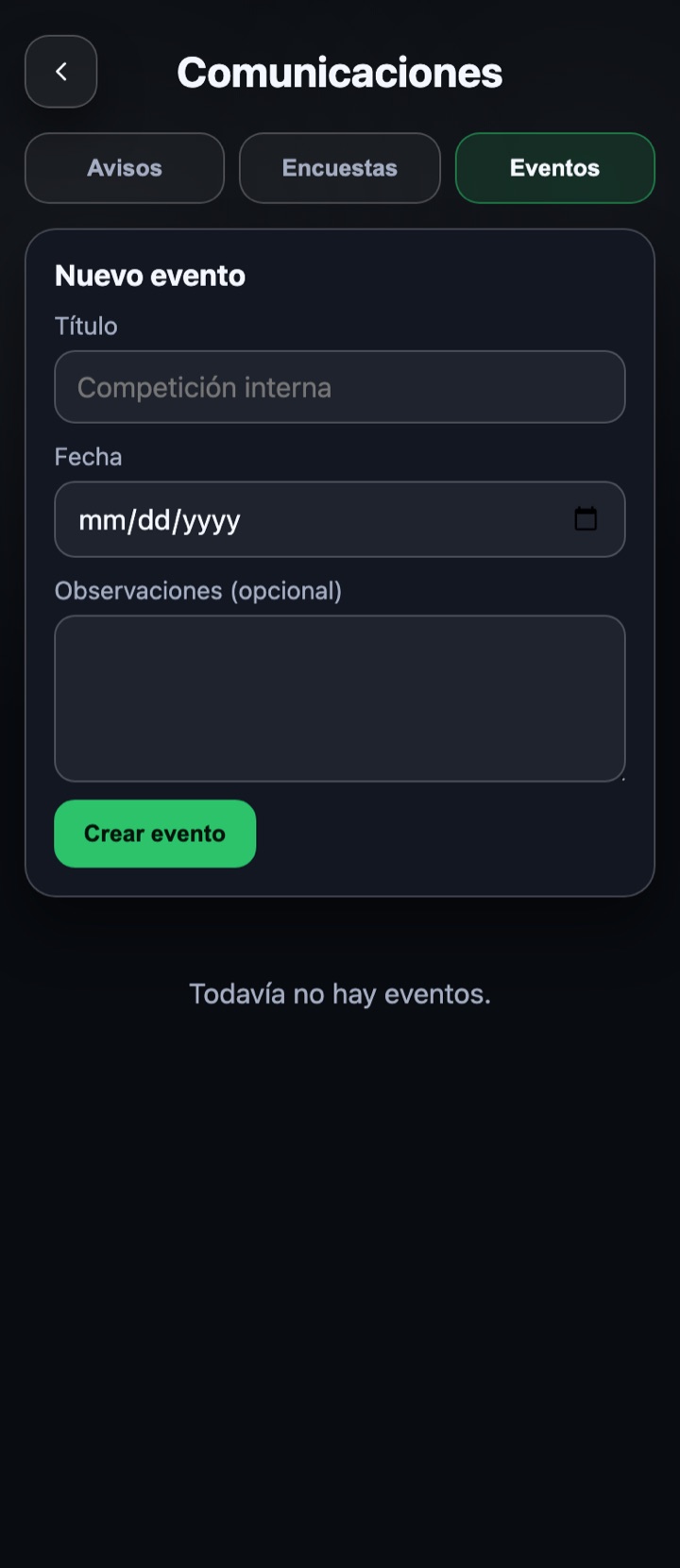
Three tabs on one screen: Notices, Surveys and Events. In all three, the form is at the top and the history below, with the option to edit or delete each item.
BOX documentation
Communications
Notices
- Write a title (if left empty, "Notices" is used) and the notice text.
- Leave "Publish and send notification to members" ticked so that, besides appearing in the app, they get a notification; untick it to save it as a draft.
- Tap "Save notice". In the history you will see whether it is published, when, and whether the notification was sent.
Surveys
- Write the question and, if you want, some notes.
- Add at least two options ("+ Add option" for more).
- Tick "Allow several answers" if each member can choose more than one.
- Save. The survey stays open and the history shows the votes for each option.
Events
- Write the event title and pick the date.
- Add notes if you want (place, time, what to bring).
- Tap "Create event". Members can sign up from the app and you will see how many have joined.
Deleting a survey also deletes its votes; the app asks for confirmation before deleting anything.