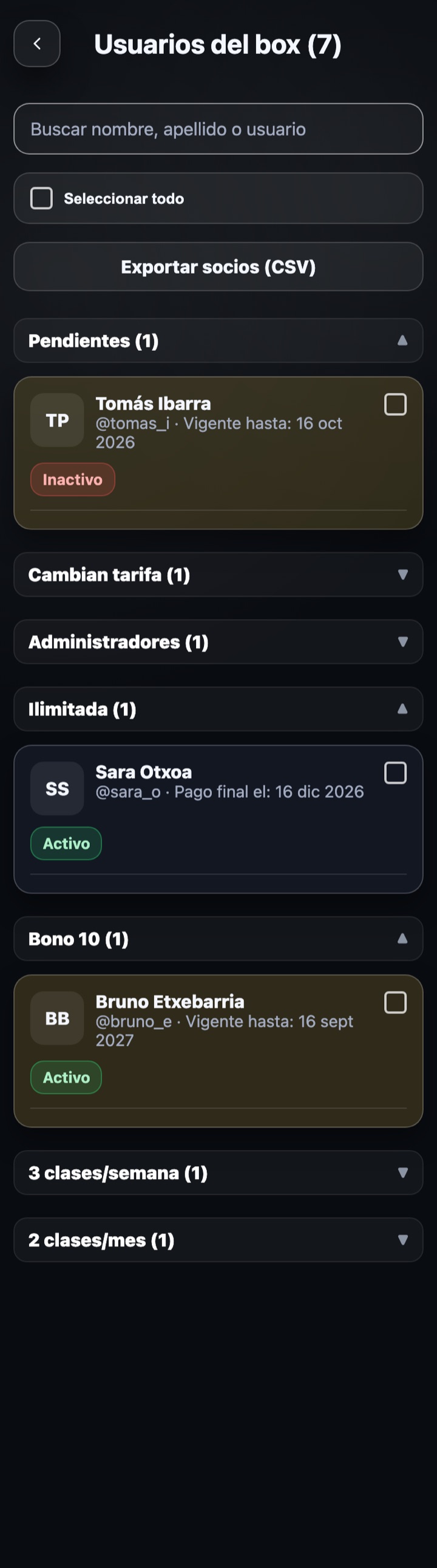
Full list of the box's people with their membership, payment status and permissions. At the top you have the search box (filters from 3 letters by first name, last name or username), "Select all" for bulk actions and "Export members (CSV)", which downloads the list with membership, price, paid until, joined, commitment and IBAN.
Manage members
Box members
How the list is grouped
- Pending: unaccepted invitations, members without a membership or with something to review in their payment (for example a returned receipt).
- Ends this month: their membership expires within the month.
- Changing membership: they have an accepted membership change waiting to be applied.
- Administrators and Coaches.
- The rest, by membership, and a "No membership" group at the end.
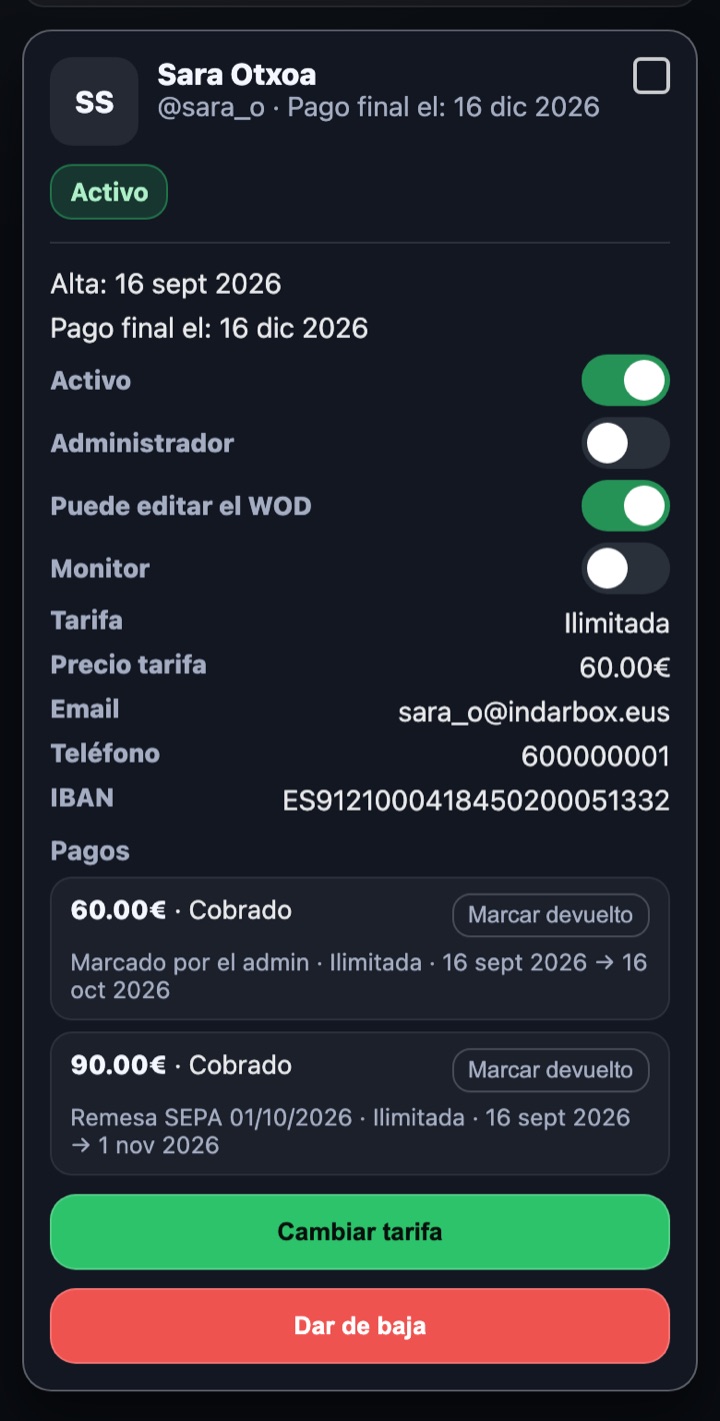
A member's card
Active
If disabled they cannot book. It switches off by itself when a payment fails or is returned.
Administrator
Access to "Manage box". Only visible if you can manage administrators.
Can edit the WOD
Lets the member publish and edit the box WODs.
Coach
Box coach: pays no membership and appears in their own group.
Membership, price, email, phone and IBAN
Contact and payment details. Email and phone can be copied with one tap.
Payments
Payment history with the method (SEPA remittance, card, marked by the admin) and the period it covers. "Mark returned" records a receipt returned by the bank: the member moves to Pending until you resolve it.
Actions
- Change membership: the change is scheduled and applied when the paid period ends.
- Pending invitation: delete it or activate it with a paid membership.
- Trial membership: move it to a paid membership.
- Remove: takes the member out of the box (not administrators). If the member requested to leave from the app, you will see the date they chose and can confirm or cancel it.
- Multiple selection: tick several boxes (or "Select all") and mark them as paid at once.