Your day-to-day box: book a class, open the door, see the box's WODs and notices, pay your fee and see who else trains with you. If you don't belong to a box yet, this screen is where you join one.
User documentation
My box
Join a box
- Ask anyone who already trains there for the box code: it doesn't have to be the administrator. Members see it on their My box screen, on the box card, right under the name (in verified boxes only the administrator sees it, but those can be found by name).
- In "Find your box", type that code. If the box is verified by CrossManiacs, you can also search by its name or city.
- Tap the box in the list and tap "Join the box". If it does not appear, check the code with whoever gave it to you.
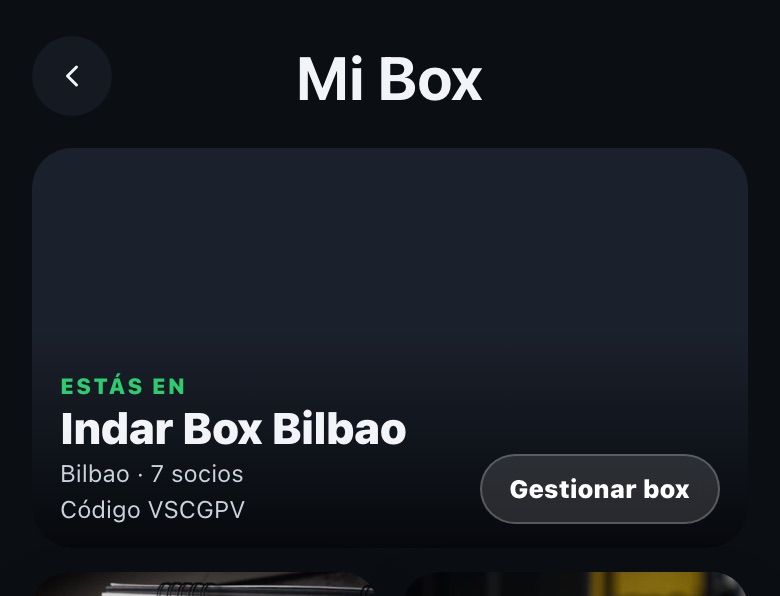
My box tiles
Book
The box's class calendar: browse by week, pick a day and in each session tap "Book" or "Cancel". You can see a session's attendees and, if it is full, join the waiting list. If you have delegates (to book on behalf of someone else in the group), you can choose "Acting as" before booking.
Open door
Only if your box has access control enabled. Press and hold the tile for 2 seconds to open the door; a single tap only shows the "press and hold" notice, it does not open it.
Box wods
Internal WODs published by your box (different from the classic and custom WODs in the WODS section).
Notices
Announcements your box publishes for its members.
Pay box
Manage payment of your fee or membership.
Box people
List of your box's users.
If your membership is pending payment, your payment details are incomplete or you have used up the classes in your pass, the app may block new bookings until the situation is sorted.