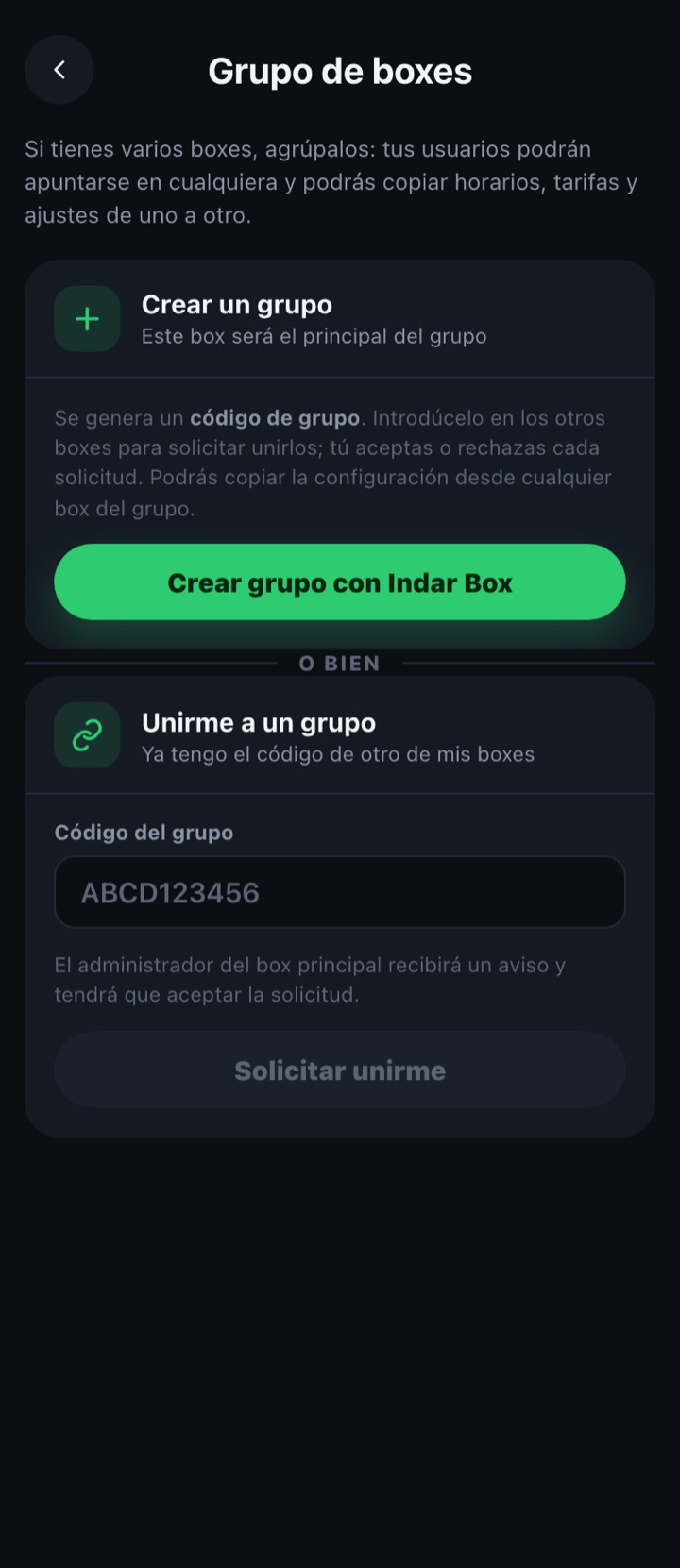
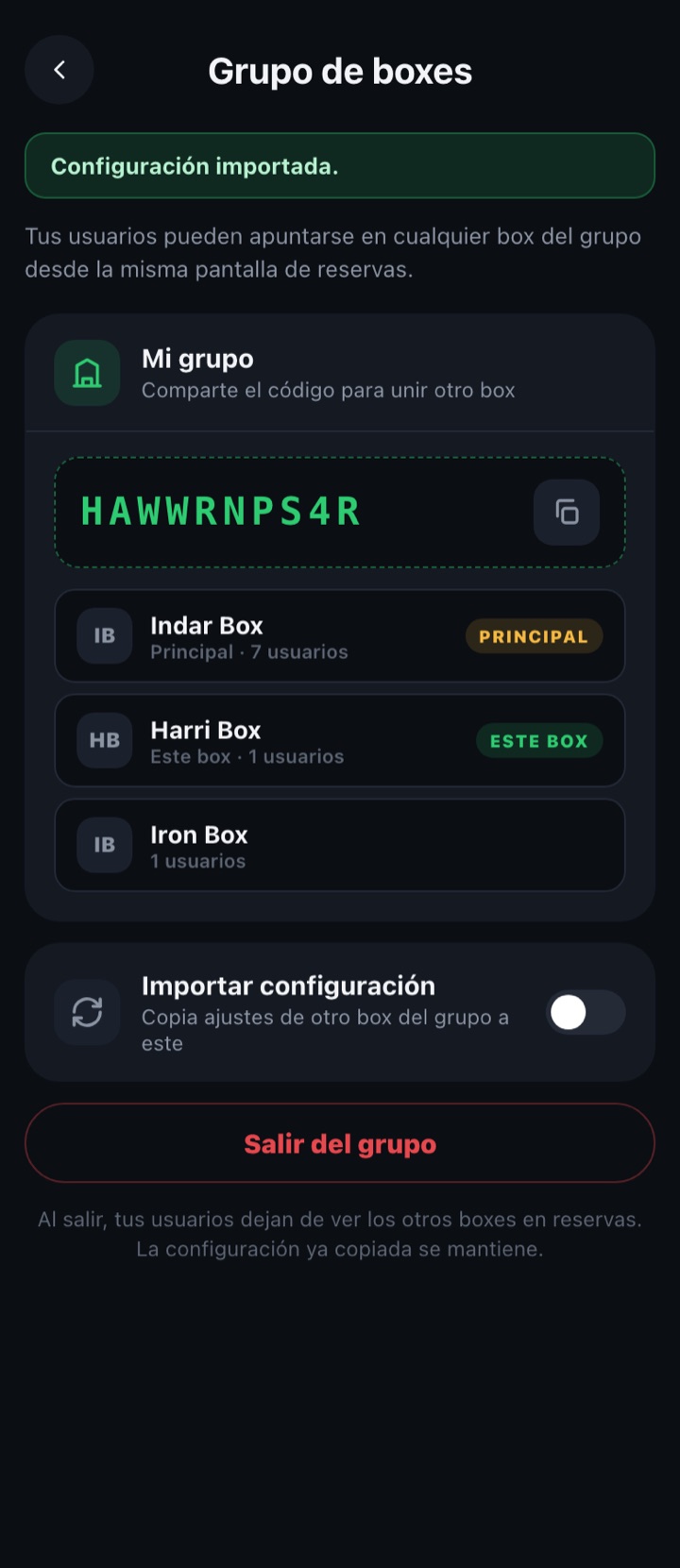
If you manage several boxes, group them. A group has a main box and the boxes that join it; once inside, the members of any of them can book a class at any other box in the group, and you can copy the configuration (types, schedules, capacity, penalties, points and memberships) from one box to another instead of configuring them one by one. In this example Indar Box is the main one and Harri Box and Iron Box join it.
BOX documentation
Box group
You get there from the "I have a group of boxes" button, at the end of "Manage box". Each box has its own administrator: the following steps are done from whichever box applies at each moment.
1. Create the group (main box)
- In the box that will be the main one, tap "Create group with [box name]".
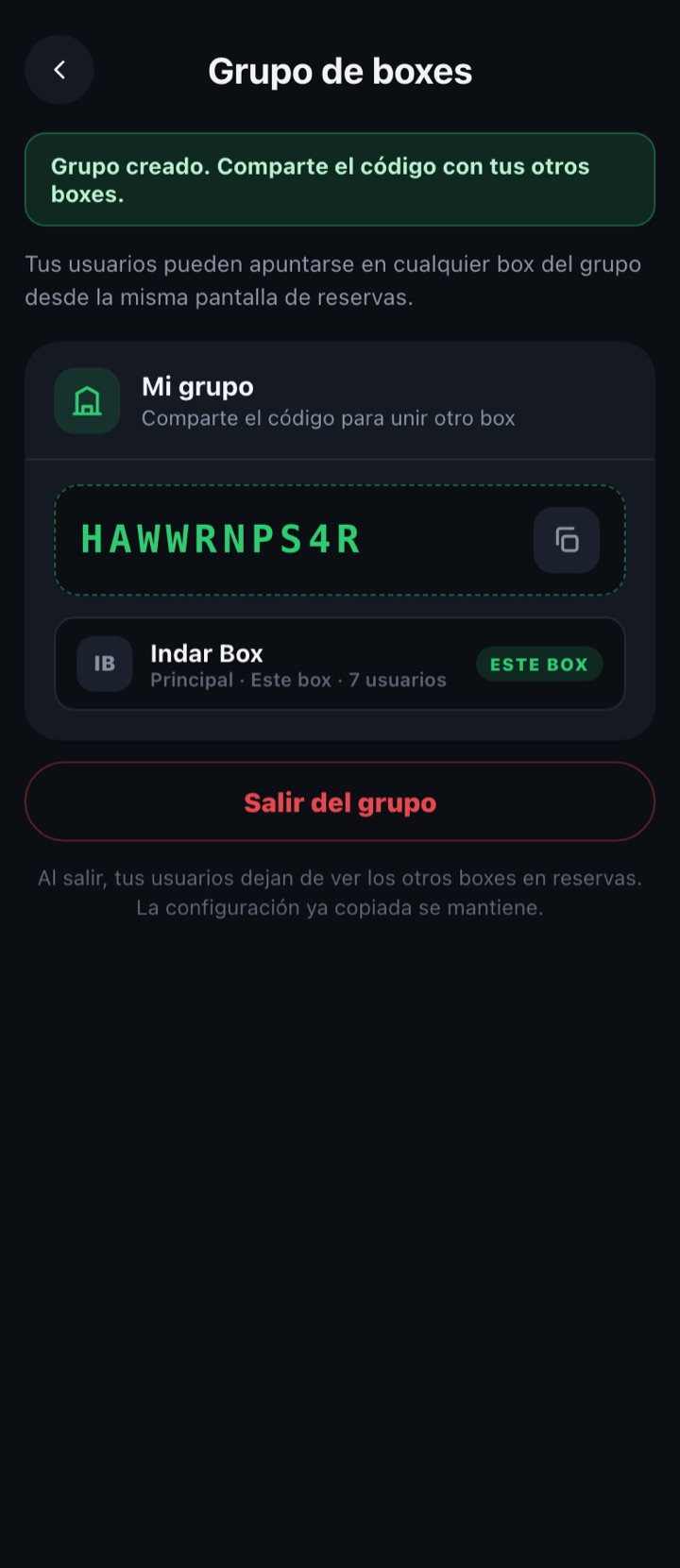
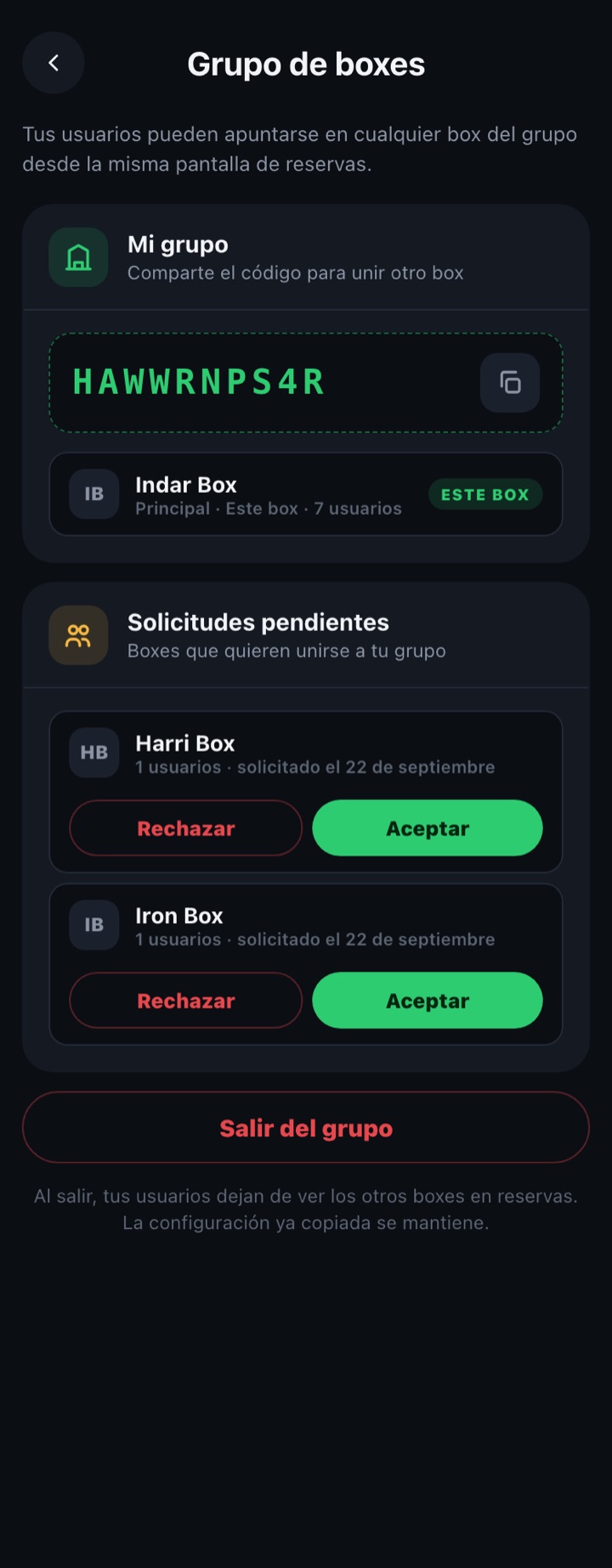
- A 10-character group code is generated. Copy it with the button next to it and give it to the administrators of your other boxes.
- The main box appears in "My group" with the Main label and its number of users.
2. Join the other boxes
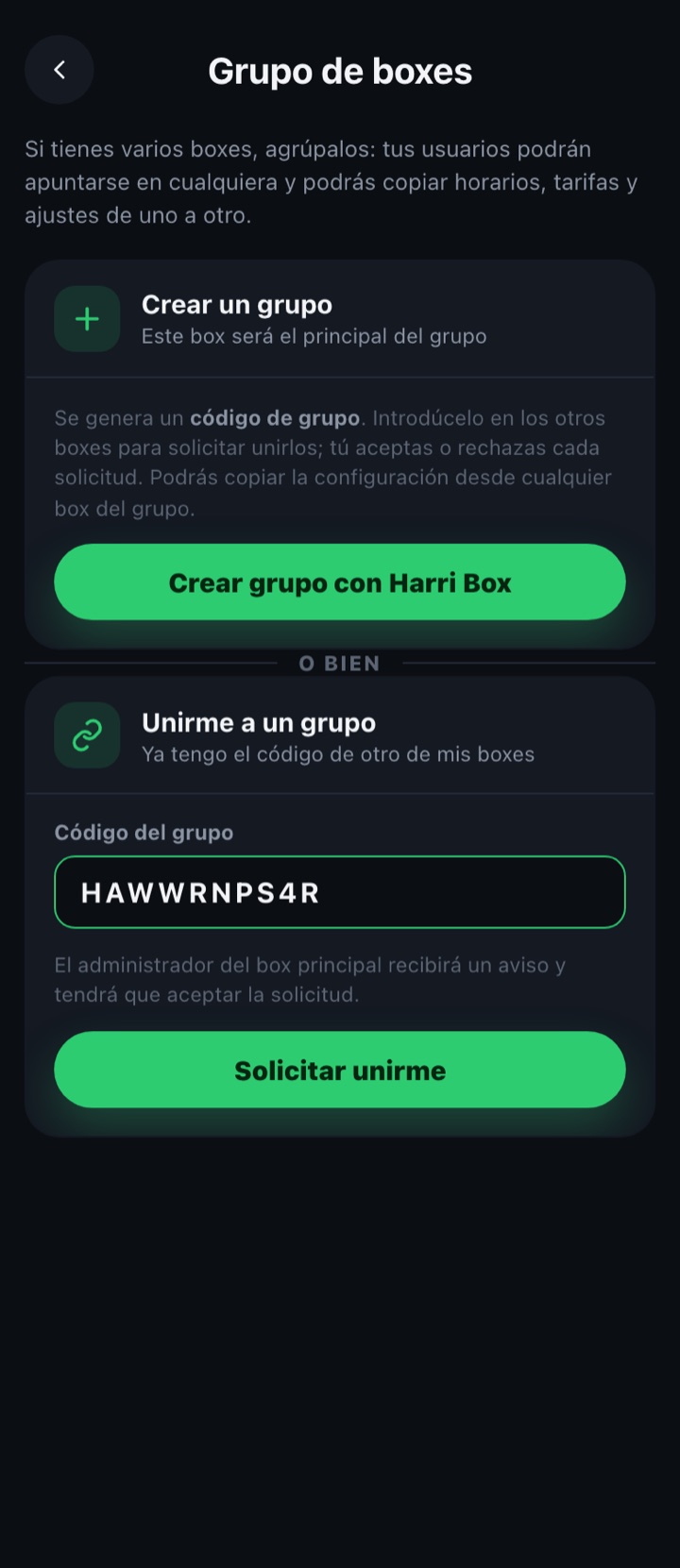
- From the other box (here Harri Box), on the same screen, type the code in "Group code" and tap "Request to join".
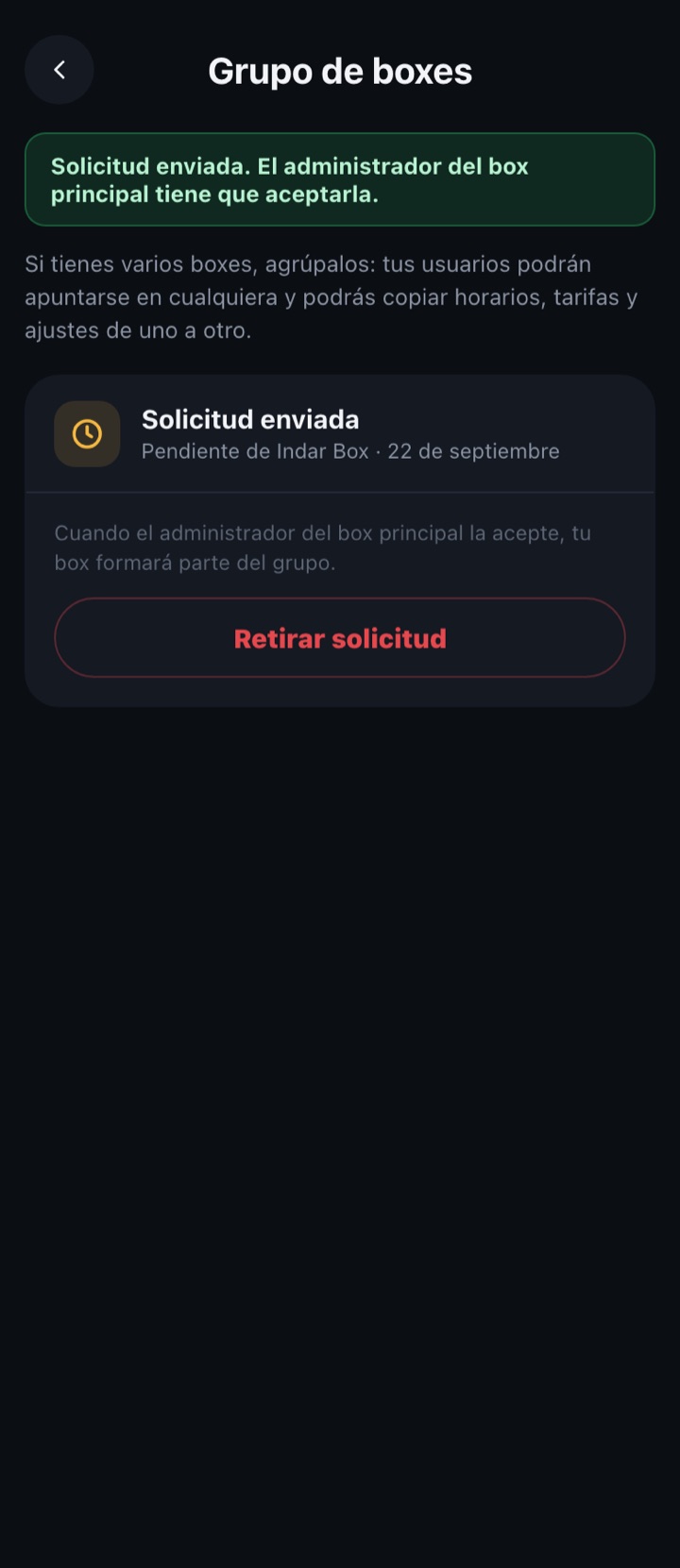
- The request stays pending until the main box accepts it. In the meantime it can be withdrawn with "Withdraw request".
- Repeat the same with every box you want to add (Iron Box in the example).
3. Accept the requests (main box)
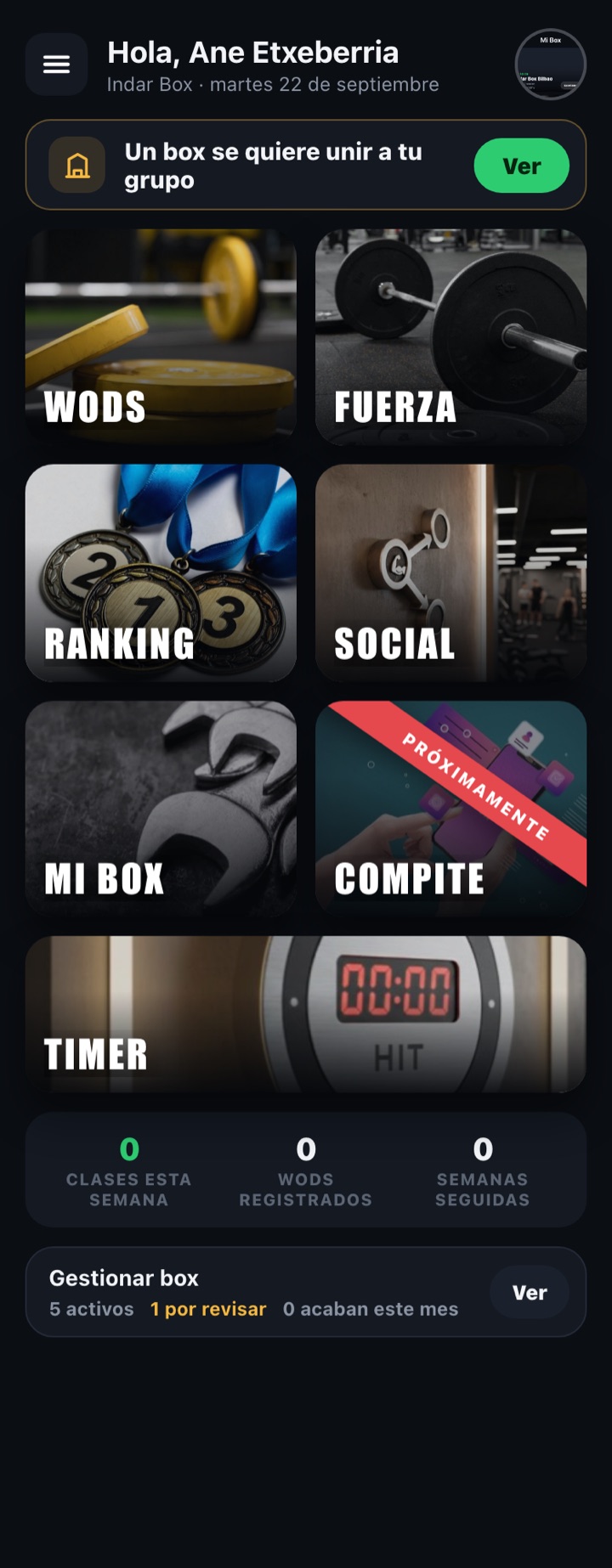
- The main box administrator sees the notice "A box wants to join your group" on their home screen; "View" takes them to the group screen.
- In "Pending requests" each box appears with the request date: Accept or Reject.
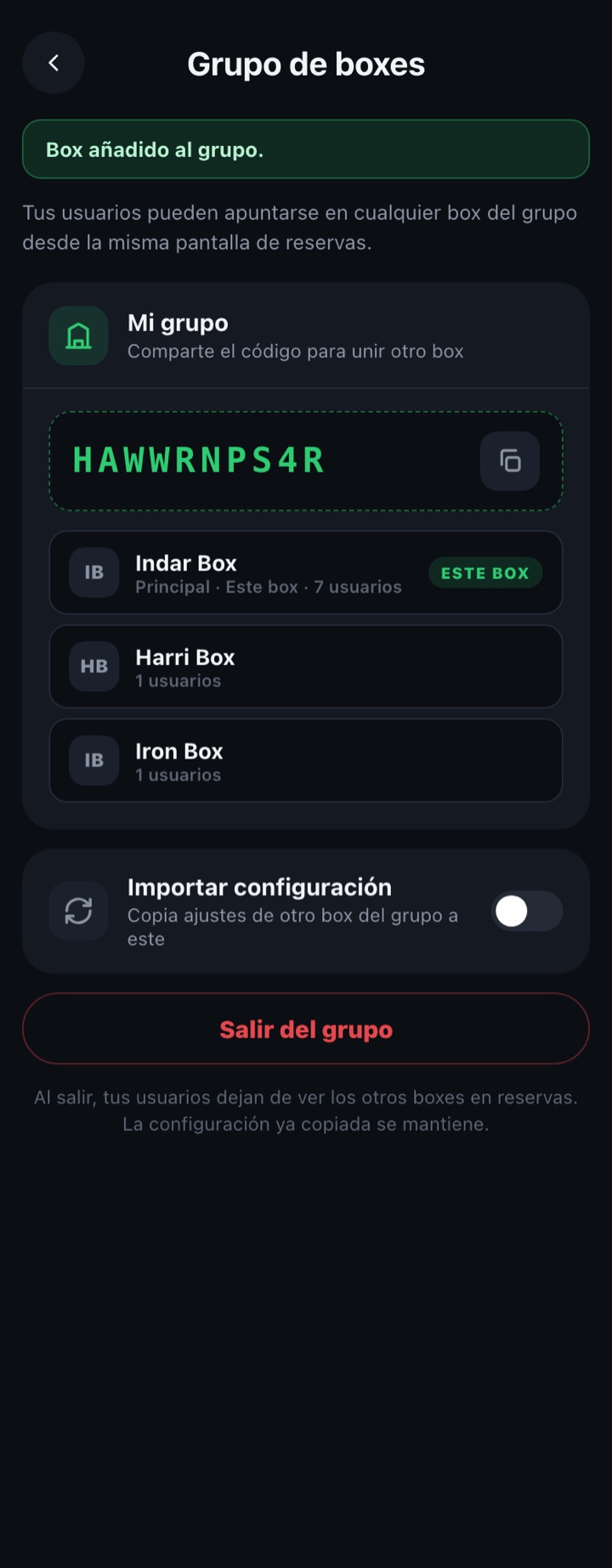
- On accepting, the box moves to the "My group" list with its number of users. From that moment its members see the other boxes when booking.
4. Import the configuration
A new box can copy the configuration of any box in the group instead of creating it from scratch. It is done from the box receiving the configuration (here Harri Box), with the "Import configuration" switch.
What can be copied
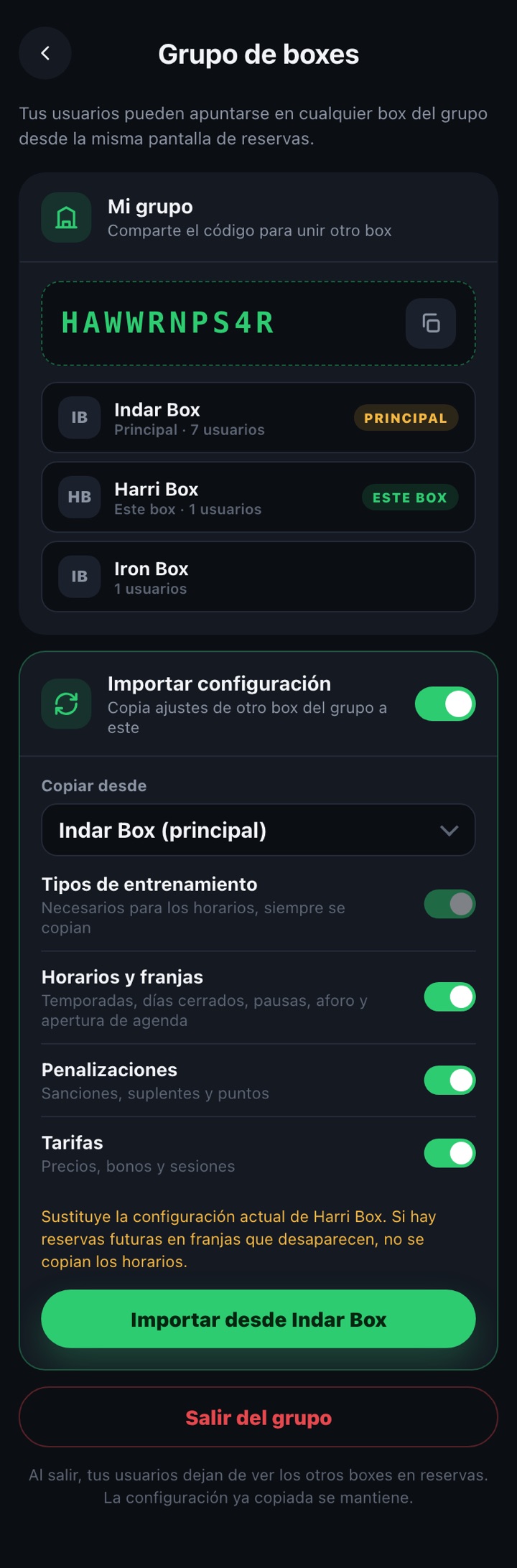
Copy from
The source box. It can be the main box or any other in the group.
Training types
Always copied, because the schedules need them.
Schedules and slots
Seasons (regular and exceptions), closed days and breaks, all the slots of the week, capacity, waiting list notice and weekly booking opening.
Penalties
Temporary penalty, substitute management, lost class and the points system.
Memberships
All memberships with price, type, commitment and class quotas.
How to import
- Turn on "Import configuration" and choose the source box in "Copy from".
- Tick the blocks you want to bring over. The ones you leave off are not touched.
- Tap "Import from [box]" and confirm. The chosen configuration replaces whatever this box had.
- Check the result in Calendar, Penalties and Memberships: you can now adjust whatever is different in this box (for example the capacity or a slot).

If this box already has future bookings in slots that would disappear with the new schedule, the schedules are not copied (the rest are). Cancel or wait for those bookings to pass and import again.
5. What members see
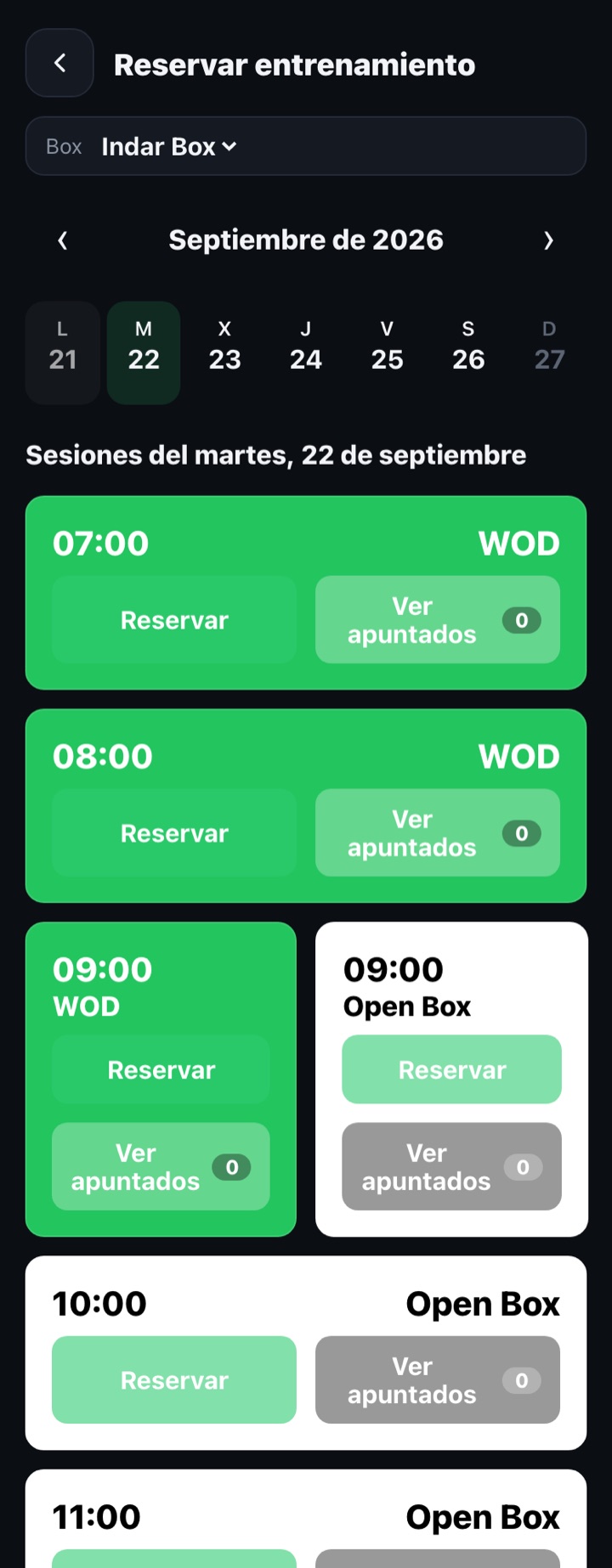
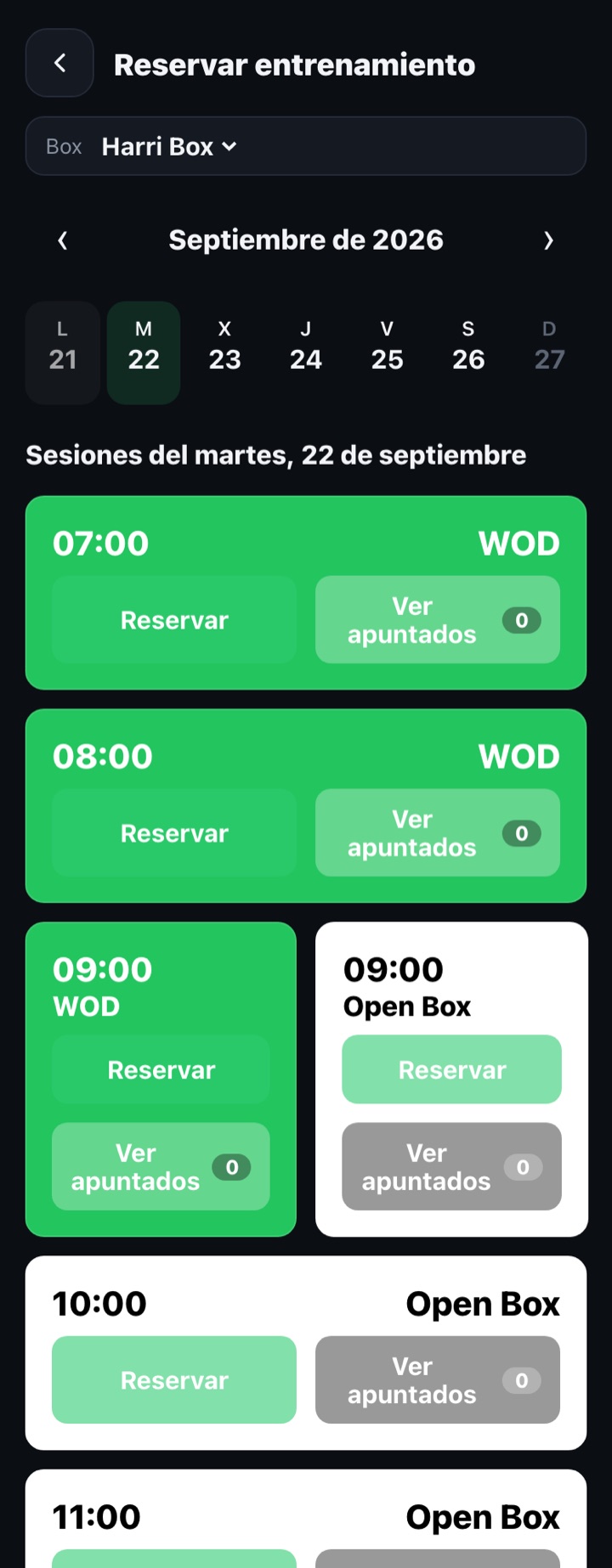
A member of any box in the group can sign up for the classes of the others interchangeably. On the bookings screen a "Box" selector appears with all the boxes of the group: choose one and see its calendar for the week with the free spots. Their membership, class limits and points apply the same wherever they book, and each box's administrator sees in their classes the members coming from other boxes.
Leave the group
Any box can leave with "Leave the group". Its members stop seeing the other boxes in Bookings, but any configuration already copied is kept.